


 05-12-2009, 08:57 PM
|
||||
|
||||
|
Replace Task Bar Icons/Ditch battery icon
Normally I'd put this under the "what does my today screen look like" thread, but I figured I'd share some of these more advanced tweaks since some people have expressed interest in them.
Do a backup and use at own risk! 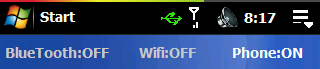 1.Change the Icons in the Task Bar This is the big fad right now at ppcgeeks and XDA--basically people are redrawing the system icons on your top Task Bark (battery, Ev, Start, Signal, etc.). The good news is you can kinda do this for the Treo Pro; the bad news is you can't change all the icons since some of these are Palm's unique ones. I'm sure someone will figure it out. Anyways, the Wifi and Ev Data icons can be changed, the rest cannot. Still, they look kinda cool. Note the "Volume" icon will only show if you do part 2 and these are only for the Sprint Treo Pro; I'll find some links for GSM versions later. Backup your device then go here and do it up. ps the "Bluetooth, Wifi, Radio" toggler plugin can be found here. 2. Get rid of the battery icon--bring back the default Volume icon By doing this trick, you ditch the battery icon. Fear not, use Batti 2.4 or some alternative for your battery needs (see the top of my screen). With the default volume icon back, you now have the option to kill all sounds AND vibrations by selecting "Off". Sweet. Simply download the attachment in the original post (thanks Cellneuron) and copy that file over to \Windows replacing the system one. Once again, back up the original JIK you don't like it! 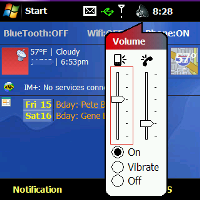 |




| This post has been thanked 3 times. |
|
05-14-2009, 12:25 AM
|
||||
|
||||
|
Re: Replace Task Bar Icons/Ditch battery icon
Is there any chance that this might work with RealVGA?
|

|
05-14-2009, 12:47 PM
|
||||
|
||||
|
Re: Replace Task Bar Icons/Ditch battery icon
Quote:
guess you can try and report back? lol |

|
05-25-2009, 05:02 PM
|
||||
|
||||
|
Re: Replace Task Bar Icons/Ditch battery icon
my question is once I install the install first.cab>then the taskbar.cab of my choice...the only thing that would appear is wi-fi and ev-do icon...? The other icons that in wm 6.5 taskbar cab such battery w/ % meter will not appear on my TB..?
I really want the ev-do and %battery...let me be honest the whole wm6.5 TB...but if I had to settle for it piece by piece that Ok...!o! just double checking before moving forward..!o! thx advance
__________________
PPC: T-Mobile's G2x // LG-P999 [unlocked & rooted] + CyanogenMod 7.2
-Get A DropBox Account_> HERE |
![info[]box1's Avatar](https://forum.ppcgeeks.com/customavatars/avatar249319_18.gif)
|
05-25-2009, 07:46 PM
|
||||
|
||||
|
Re: Replace Task Bar Icons/Ditch battery icon
Is there a registry hack to change the analog battery icon to show just %?
|
|
05-25-2009, 09:41 PM
|
||||
|
||||
|
Re: Replace Task Bar Icons/Ditch battery icon
Quote:
from what i read in the first post by Malatesta..not for the palm pro...not yet anyway...only TB icon tweak is ev-do and 1x icon... but if you already have the %battery icons there a registry edit in a thread>Custom Taskbar post#1... |
|
06-10-2009, 04:38 PM
|
||||
|
||||
|
Re: Replace Task Bar Icons/Ditch battery icon
Quote:
Malatesta...I just had an epiphany when I saw this thread over there in the Pocket PC theme room...Its called Palm Pre Icons All the credit go to PropagandaX for originally/searching/finding and posting a zip file that he believe is more of QVGA size. He replaced this with an resized copy for VGA devices i.e Touch Pro. I made an request for the original zip to be reposted...BIG THANKS PropagandaX Here it go: http://forum.ppcgeeks.com/attachment...6&d=1244663743 Malatesta or any of the other professionals out there...?Can you take a look at this zip fill with Palm Pre icons and see if these are compatible with the unique Palm Treo Pro icons (Task Bar)...etc BIG THANKS IN ADVANCE..!!! Last edited by info[]box1; 06-10-2009 at 07:16 PM. |
|
06-10-2009, 05:24 PM
|
||||
|
||||
|
Re: Replace Task Bar Icons/Ditch battery icon
Quote:
__________________
“You cannot invade the mainland United States. There would be a rifle behind every blade of grass.” - Admiral Isoroku Yamamoto WWII "Those who would give up essential liberty to purchase a little temporary safety deserve neither liberty nor safety." - Benjamin Franklin  Treo 650 -> Mogul -> Touch -> Diamond -> Treo Pro -> Touch Pro |

|
06-11-2009, 12:46 PM
|
||||
|
||||
|
Re: Replace Task Bar Icons/Ditch battery icon
Quote:
These won't be able to be used for this thread's purpose, but these would be good for those who use Today screen launchers e.g. Ultimate Launch. |
| This post has been thanked 1 times. |
|
08-07-2009, 07:53 PM
|
||||
|
||||
|
Re: Replace Task Bar Icons/Ditch battery icon
Quote:
Will the Palm Pro taskbar be fully customizable once the device is unlocked.? Will we see a Custom ROM with a custom taskbar.? This could be wishful thinking you never know. |
 |
|
«
Previous Thread
|
Next Thread
»
 Linear Mode

|
|

All times are GMT -4. The time now is 08:27 PM.


