Quote:
Originally Posted by syrguy1969

and that is EXACTLY where I am fumbling the ball as well!! I am thinking we could use step-by-step from THAT point, or the video may help there. The fading and gloss are my stumbling blocks!!
|
Ok you guys appear to have the top portion of the battery and the bottom reflection semi learned. SO here are some images to get you going on getting the rest done.
This is where you guys are so far..notice the reflection of the broncos logo on the bottom has been blended into the background..after using a granual transparancy with most of the transparancy on the bottom so it blends into the background (do this multiple times to get the effect you want) it should loook like this in ex. 1 below.
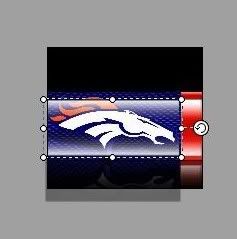
Now select the glossy effect you created at the top of the battery and right click on it with the mouse and choose copy as shown in ex. 2 below
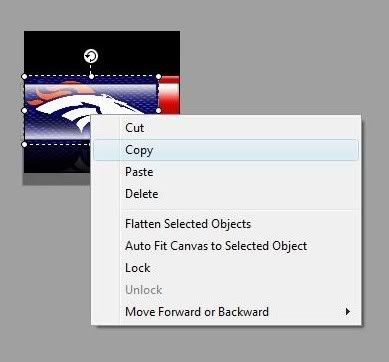
Now right click the mouse again and this time choose paste. This should create a copy of your glossy effect layer ontop of the original one. like so...
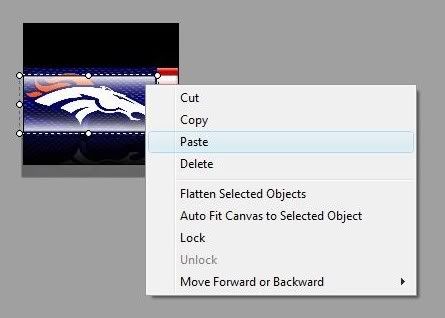
Now click on the top glossy effect layer and drag it down to the reflection area of the battery..taking note to the red portion wich still has some of the glossy effect reflection layer on it...just simply line up your glossy effect layer your dragging from up top with the glossy layer from the red portion of the battery..
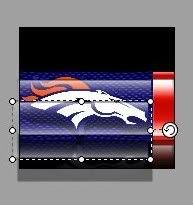
Now if you like you can use an even transparancy to blend in your glossy effect reflection layer to your desire. as shown below.

and your done..I hope this helps!